
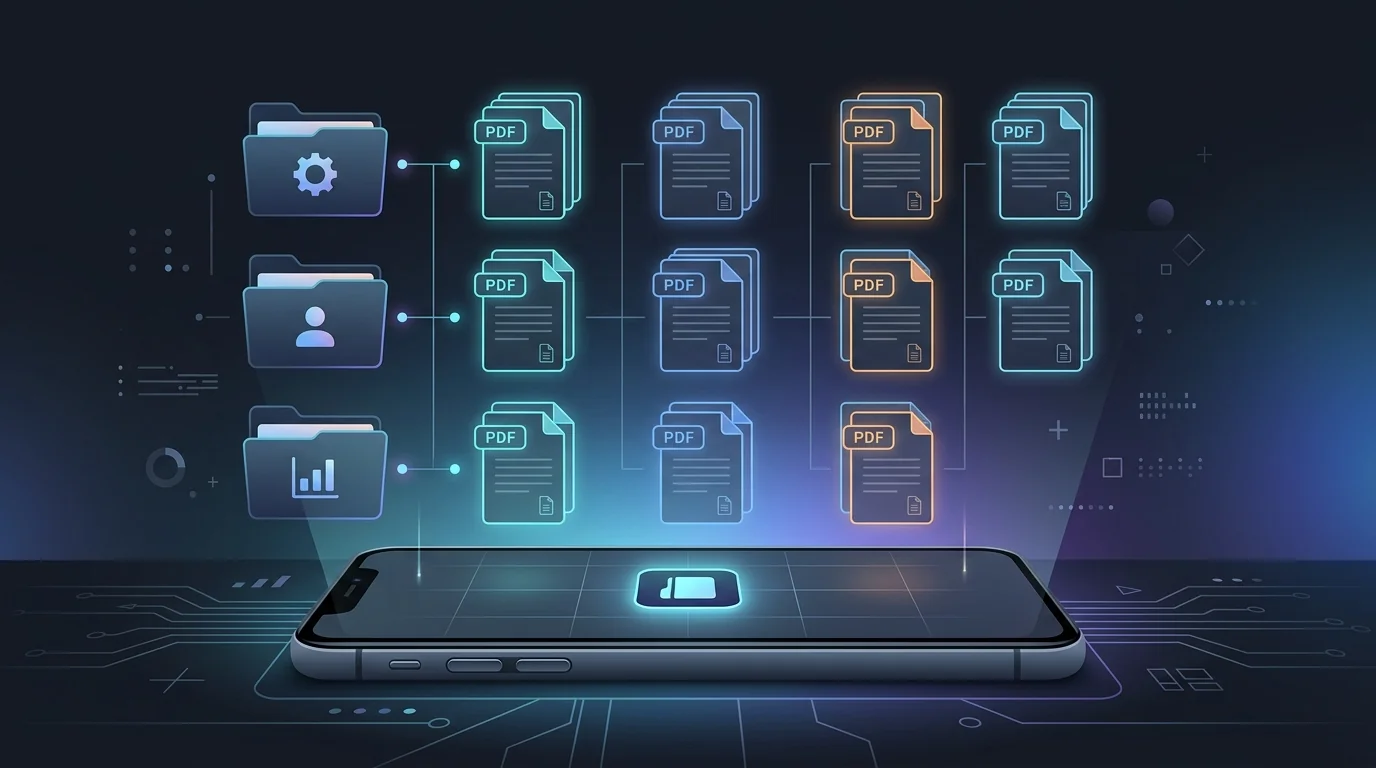
Once you locate a downloaded file, the next challenge begins: making sure it does not get lost again. Over time, an Android phone can easily become cluttered with randomly named receipts, flight tickets, and work documents, all buried in a chaotic Downloads folder.
If your phone's storage feels like a messy drawer, it is time to set up a practical system. Learning how to manage PDF files on Android does not require complex cloud syncing or expensive subscriptions; it just requires a few simple habits and the right local workflow.
Key Takeaways
- The Downloads Trap: Leaving files in your default Android Downloads folder increases the risk they will be lost among images and temporary files.
- Immediate Renaming: The single most effective habit is renaming files like "doc_1234.pdf" the moment they hit your device.
- Smart Libraries: You can bypass manual folder organization entirely by using an app that automatically scans and groups your documents in one place.
The Trap of the Android Downloads Folder
Android's default behavior is to save most web downloads into a single folder. While this is convenient for temporary items, it is a poor long-term storage strategy for important documents.
When you mix banking statements with downloaded memes and temporary app installers, locating a specific PDF weeks later becomes incredibly difficult. If you are currently struggling just to locate a missing document, you may want to review our guide on how to find downloaded PDFs on Android before setting up your permanent workflow.
Step 1: Rename Files Immediately
Most systems generate PDFs with completely unhelpful names, such as "invoice_889102.pdf" or "scan-01-final.pdf." Even the best folder structure cannot save you if you do not know what a file contains.
Get into the habit of renaming a document the moment it downloads. You can usually do this by opening your file manager, long-pressing the new file, and selecting "Rename." Use clear, descriptive names that include the date or the subject. Changing "doc_44.pdf" to "2026-Tax-Return.pdf" ensures that you can locate it instantly using your phone's native search bar.
Step 2: Create a Minimal Local Folder Structure
You do not need a complex filing cabinet on your phone. Using your device's built-in file manager, create a master folder named "Documents" outside of the Downloads directory. Inside it, create just two or three subfolders that match your lifestyle, such as:
- Receipts & Bills
- Travel & Tickets
- Work
The key to a successful local system is keeping your categories broad. If your folder structure becomes too specific or complicated, you will inevitably stop using it. By moving files out of the Downloads folder and into these broad spaces, you protect your important PDFs from accidental deletion when you clear out your temporary files.
Step 3: Skip Manual Sorting with a Library App
Manual folder organization is useful, but it requires constant discipline. Many users simply want a clean way to see and access the documents already stored on their device without having to move files around by hand.
This is where a dedicated Android PDF workflow becomes essential. Rather than digging through file manager apps, a lightweight PDF reader will automatically scan your device, identify the PDFs, and present them in a clean, unified view. Modern offline readers even allow you to mark important files as favorites or assign them to categories within the app, giving you the benefits of organization without the chore of moving files.
Summary
To properly manage downloaded PDFs, you must take control of the chaos. Whether you prefer to manually rename and move files into specific folders, or rely on a dedicated app to automatically group them for you, establishing a reliable local system ensures your important documents are always exactly where you need them.
A Simpler Way to Manage Your PDFs
Fast PDF Reader automatically discovers PDF files available on your device, helping you find, read and organize them locally.
Frequently Asked Questions
How do I move a PDF out of the Downloads folder?
Open your Android device's built-in file manager app (often called "Files" or "My Files"). Navigate to Downloads, long-press the PDF you want to move, select "Move," and navigate to your new destination folder to paste it.
Why do my downloaded PDFs keep disappearing?
If you use apps that auto-delete temporary files, or if you regularly clear your Downloads folder to free up space, your PDFs will be deleted. Moving important documents to a dedicated folder protects them.
Do I need a cloud service to organize my documents?
No. You can organize documents on your phone entirely locally. Local management is faster, preserves your privacy, and does not require a subscription.
Is there a way to view all my PDFs in one place?
Yes. Using a dedicated PDF app like Fast PDF Reader will automatically scan your device storage and display all your PDFs in a single library view, regardless of which folder they are saved in.
Does organizing PDFs move them on my device?
No, organizing PDFs in Fast Offline PDF Reader creates logical categories and favorites without moving the original files, keeping your storage structure completely intact.
Can I organize large PDF files easily?
Yes, a dedicated PDF reader can handle large files efficiently, allowing you to quickly batch-select and organize them without device slowdown.
Do I need the internet to organize my PDFs?
Not at all. With a local-first application like Fast Offline PDF Reader, all your file organization is processed directly and securely on your Android device.